



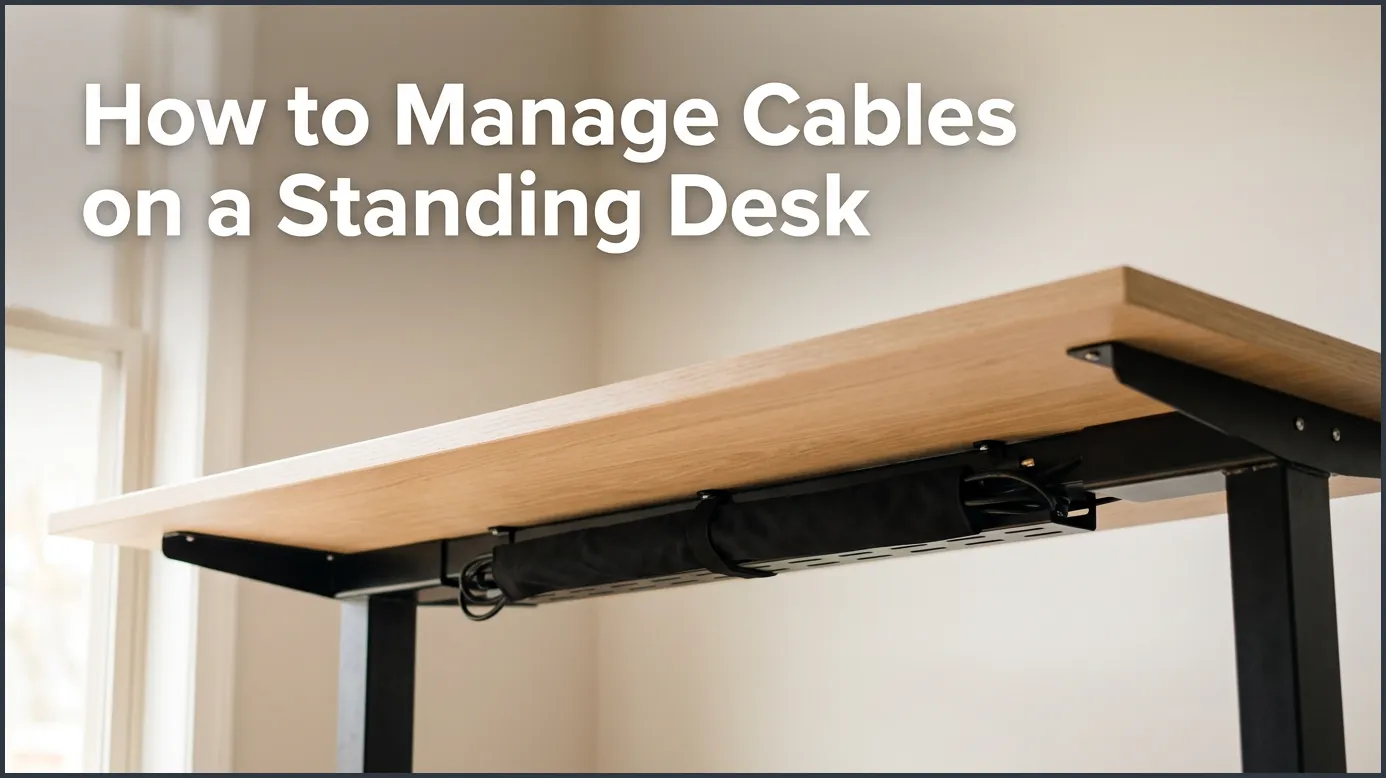
Managing cables on a height-adjustable workspace requires strategic slack to prevent cord damage when the desk moves. By mounting a power strip under the desk, using a cable tray, and securing wires with Velcro ties, you can create a clean setup. A flexible cable spine protects your main power cords as your desk rises and falls throughout the day.
Imagine this scenario. You finally bought that beautiful new standing desk. You set it up, put your monitor in place, and press the button to raise it for the first time. It feels great to stand and work. But then, you hear a loud pop. Your monitor flickers and turns off. You look down and realize the power cable was too short. The rising desk pulled it right out of the wall, damaging the plug.
This is a common issue for sit-stand desk owners. Having a desk that moves up and down introduces a new challenge to organizing your workspace. If your cords are too tight, they can rip out, bend, or break. If they are too loose, they hang down like a messy spiderweb. A messy desk can hurt your focus and make a beautiful home office look cheap and cluttered.
Thankfully, learning how to manage cables on a standing desk is not as hard as it looks. With a few simple tools and a clear plan, you can hide every single cord. Your desk will look sleek, clean, and safe at any height. Let us dive into the best ways to get your cables under control.
Key Takeaways
- The Golden Rule: Always leave enough slack in your cables so they do not pull or snap when the desk is fully raised.
- Mount the Power Strip: Attach your power strip directly to the underside of the desktop to keep your device cords moving with the desk.
- Use Cable Trays: Under-desk trays or baskets are perfect for holding heavy power bricks and excess wire length.
- Ditch Plastic Zip Ties: Use reusable Velcro ties instead, which allow you to adjust or swap cables easily as your setup changes.
- Manage the Ground Drop: Use a flexible cable spine or cable sleeve to guide the main power cords safely down to the wall outlet.
📑 Table of Contents
Why Cable Management Matters for Sit-Stand Desks
When you have a standard, stationary desk, cable management is mostly about looks. You tuck the cords away so you do not have to look at them. But with a standing desk, managing your wires is a matter of safety and equipment care.
Safety and Equipment Damage
The main hazard of a moving desk is tension. If a wire is too short, the motor on your standing desk is strong enough to rip the cord apart or pull your expensive computer right off the edge. Additionally, loose wires hanging under your desk can easily get caught on your knees, your office chair armrests, or even a passing pet. This can cause dangerous trips and falls, or pull your gear to the floor.
Aesthetic Value and Focus
A clean desk leads to a clean mind. When you look at a tangled mess of black and gray wires, your brain registers it as clutter. This clutter can cause subtle, everyday stress. By hiding your wires, you create a calm, professional environment. Your desk looks modern and high-tech, which can actually boost your productivity and focus.
The Golden Rule: The Cable Slack Test
Before you buy any tools or start taping cords down, you must understand the golden rule of standing desk cable management: always test your cords at the desk’s highest point.
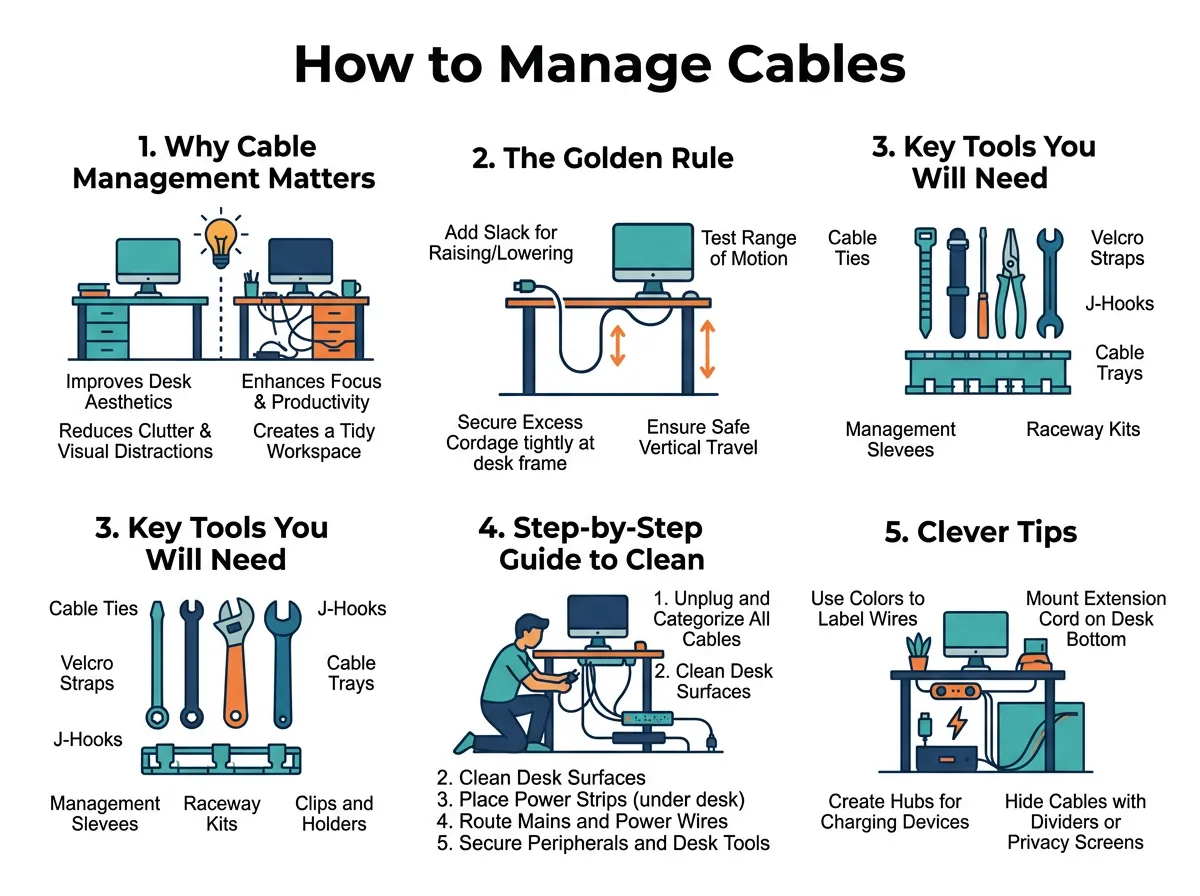
How to Manage Cables on a Standing Desk — key points at a glance
Measuring the Range of Motion
To start, raise your desk to its absolute highest setting. This is the maximum distance your cables will ever need to stretch. Any cable that goes from the desk to the floor must have enough slack to reach this height comfortably. If a cable is tight or pulling when the desk is fully raised, it is too short. You will need a longer cable or an extension cord.
Creating a Pivot Point
When you lower the desk back to a sitting position, that extra slack has to go somewhere. It will naturally fold or bend. You want to guide this extra length so it folds neatly instead of bunching up under your feet or getting pinched in the desk’s lifting legs. Creating a single, safe pivot point for all your floor-bound cables is the secret to a professional setup.
Key Tools You Will Need
You do not need to spend a fortune to organize your desk. However, investing in a few cheap accessories will make the job much easier. Here are the most helpful tools to look for.
Under-Desk Cable Trays
A cable tray is a metal or plastic basket that mounts directly to the bottom of your desktop. This is the single most important tool you can buy. It acts as a hidden shelf for your power strips, power bricks, and extra cord lengths. By keeping these heavy items off the floor, your desk stays clean and easy to vacuum under.
Velcro Ties and Cable Sleeves
Avoid plastic zip ties if you can. Once you snip a zip tie to change a cable, it goes in the trash. Instead, use reusable Velcro cable ties. They are cheap, easy to adjust, and gentle on your cords. For grouping multiple cables together into one clean bundle, a mesh or neoprene cable sleeve works wonders.
A Cable Spine or Snake
A cable spine (sometimes called a cable snake) is a flexible plastic chain that attaches to the underside of your desk and rests on the floor. Your cords run inside the spine. As the desk rises and falls, the spine bends and straightens in a controlled line. This keeps your cables from swinging or getting caught on furniture. For more details on these tools, you can read this complete setup guide by Uplift Desk.
Step-by-Step Guide to Clean Desk Cables
Now that you have your tools, it is time to build your setup. Follow these simple steps to learn how to manage cables on a standing desk like a pro.
Step 1: Clear the Workspace
Start with a clean slate. Unplug everything and remove all cables from your desk. It is much easier to design a clean layout when you are not fighting an existing mess. Wipe down the underside of your desk to remove any dust, as this will help adhesive mounts stick better.
Step 2: Mount Your Power Strip
The biggest mistake people make is leaving their power strip on the floor. When the strip is on the floor, every single device on your desk needs a long cable to reach it. Instead, mount your power strip directly to the underside of your desk. You can use screws, heavy-duty mounting tape, or place it inside your under-desk cable tray.
Now, only one main power cable needs to run from the desk to the wall. Every other device—like your monitor, computer, and desk lamp—can plug directly into the underside of the desk. This keeps almost all of your cords local to the moving desktop.
Step 3: Route and Bundle Your Desktop Cords
Place your monitors, computer, and accessories back on the desk. Group their cables together using Velcro ties. Run them down the back of your monitor arms or stand. Most modern monitor arms have built-in clips to hide these wires.
Run these bundled cables directly into your under-desk cable tray. If you have excess cord length, fold it neatly and secure it with a Velcro tie inside the tray. Try to keep power cables and data cables (like HDMI or USB cords) slightly separated to avoid signal interference.
Step 4: Manage the Main Power Drop
Now, you should only have one or two cables that actually go from the moving desk down to the wall outlet. This is usually the main power strip cord and perhaps an ethernet cable. Run these cords through your flexible cable spine or a neat cable sleeve. If you want more ideas on how to secure these moving parts, you can check out this Spiceworks community discussion on vertically moving desks.
Clever Tips for a Minimalist Workspace
If you want to take your organization to the next level, try these smart tips to make your desk look completely wireless.
Go Wireless Where Possible
The easiest wire to manage is the one that does not exist. Use a wireless keyboard and mouse. Use a wireless charging pad for your phone. By cutting down on input device cords, you keep the top of your desk looking clean and tidy.
Hide Your Power Bricks
Many devices, like laptops and monitors, have large, heavy power adapters (the “bricks”). Do not let these dangle off the back of your desk. Use double-sided mounting tape or Velcro straps to stick them flat against the underside of your wood desktop or tuck them deep inside your cable tray. This keeps their weight supported and hides them from sight.
Conclusion
Learning how to manage cables on a standing desk takes a bit of time and planning, but the rewards are well worth the effort. By mounting your power strip under the desktop and testing your cable slack, you protect your expensive gear and create a workspace you can be proud of. A clean, organized standing desk will inspire you to stand up, stay active, and do your best work every single day.
Frequently Asked Questions
How much slack should I leave in my standing desk cables?
You should leave enough slack so that all cables going to the floor are completely loose when the desk is raised to its highest point. If any cable is tight or pulling, it needs more slack or a longer extension. Always test the movement slowly before letting the desk rise on its own.
Can I use adhesive clips on a standing desk?
Yes, adhesive cable clips are excellent for holding thin wires like phone chargers or keyboard cables. Make sure to wipe the underside of your desk with rubbing alcohol to remove dust before sticking them on. For heavier cables, use screws or baskets instead, as adhesive can peel off over time.
Where should I place my power strip on a standing desk?
You should mount your power strip directly to the underside of the desk or place it in an under-desk cable tray. This ensures that your computer and monitor cords move with the desk, leaving only one main power cord dropping down to the wall outlet.
Are zip ties safe to use for desk cable management?
While plastic zip ties work well, they are not ideal because they are permanent. If you need to add a new device or move a cord, you have to cut the zip tie off and risk cutting your cables. Reusable Velcro straps are much safer, easier to use, and highly adjustable.
What is a cable snake and do I need one?
A cable snake, or cable spine, is a flexible track that organizes and guides the cords running from your desk to the floor. While not strictly necessary, it is highly recommended because it prevents cables from tangling or catching on other items when the desk moves.
How do I hide large laptop power bricks?
You can hide large power bricks by tucking them into an under-desk cable tray or by mounting them flat to the underside of the desk using heavy-duty double-sided tape or Velcro. This keeps them out of sight and stops them from pulling on your laptop charging port.
