



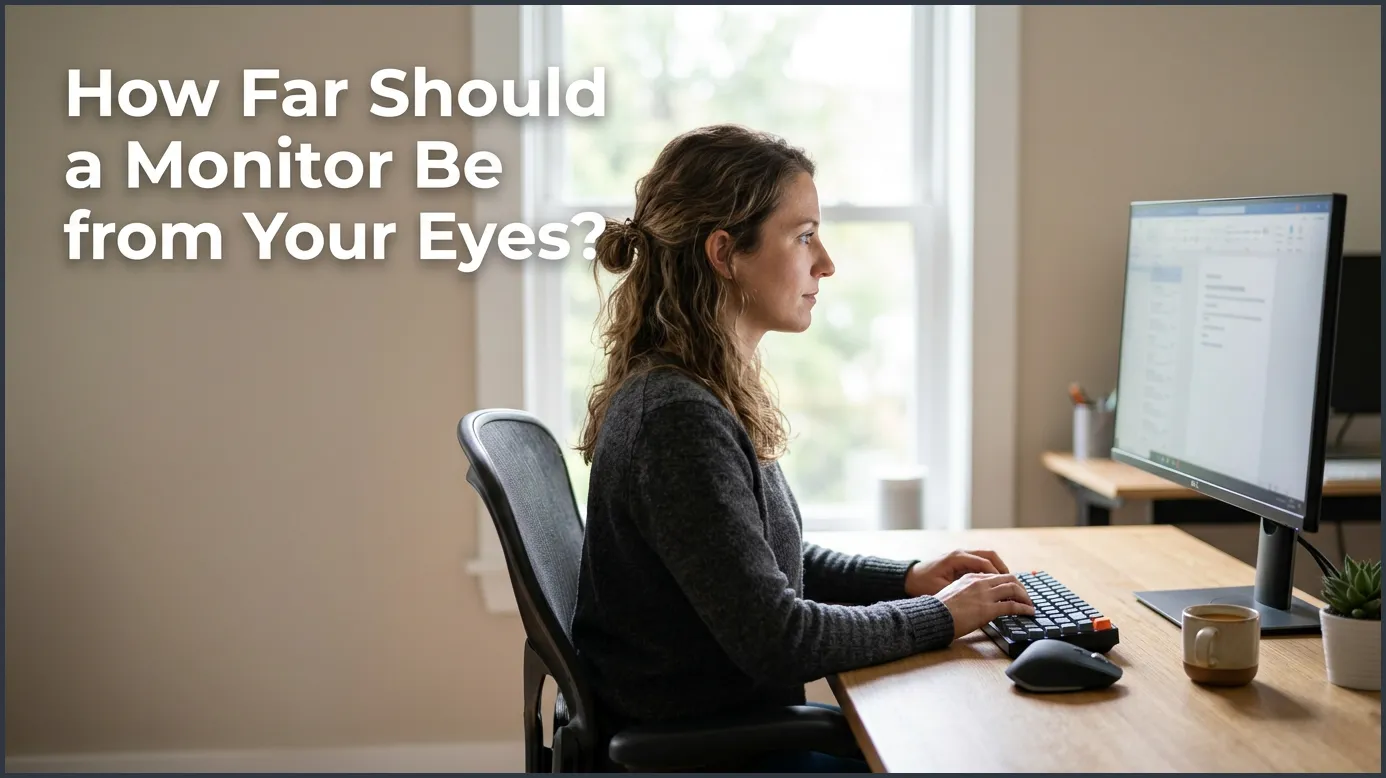
To protect your vision and prevent fatigue, your computer monitor should be placed between 20 and 40 inches (50 to 100 cm) away from your eyes. A great rule of thumb is the “arm’s length” rule, where your screen sits just at your fingertips when you extend your arm. Keeping your monitor at this distance, with the top of the screen at or slightly below eye level, will keep your neck and eyes comfortable all day.
Think about a typical day at your desk. You sit down in the morning feeling fresh. But by mid-afternoon, your head is throbbing. Your eyes feel dry and scratchy. You find yourself leaning forward, squinting at the words on your screen. Your shoulders are tight, and your neck feels like it is locked in place.
This is a very common story for office workers, students, and gamers. We spend hours every single day looking at digital displays. Yet, we rarely think about where our screens are placed. A poor desk setup can quietry drain your energy and hurt your health. When setting up your workstation, the first question to answer is: How Far Should a Monitor Be From Your Eyes?
In this guide, we will explore the best ways to position your screen. We will look at the science of eye strain, the magic of the arm’s length test, and how screen size changes the rules. We will also share easy tips to make your screen easier to read. Let’s make your workspace healthy, comfortable, and pain-free.
Key Takeaways
- The Arm’s Length Rule: Place your screen about 20 to 40 inches away, which is roughly the length of your fully extended arm.
- Eye-Level Alignment: Keep the top of your screen at or just below your eye level to prevent neck strain and dry eyes.
- Screen Size Matters: Larger displays require more physical space and a greater viewing distance to keep everything in sight.
- The 20-20-20 Rule: Take a break every 20 minutes to look at something 20 feet away for 20 seconds.
- Adjust Text Scaling: Do not pull your monitor closer to read small text; increase your font size in your settings instead.
- Tilt for Comfort: Tilt your screen backward by 10 to 20 degrees to match your natural line of sight and block glare.
📑 Table of Contents
The Science Behind Screen Distance and Eye Health
Why does screen distance matter so much? Your eyes are powered by tiny muscles. Just like the muscles in your legs or arms, they get tired when they work too hard. When you look at an object that is very close, your eye muscles must tighten to focus. This process is called accommodation. If you stare at a close screen for hours, these muscles stay locked in a tight state. Over time, this causes fatigue, focus issues, and blurry vision.
Another factor is how your eyes aim. To look at something close to your face, both eyes must turn inward. This is called convergence. Close screens force your eyes to turn inward for long periods. This constant inward pull causes headaches and deep eye fatigue. Many people call this digital eye strain or computer vision syndrome.
Many office workers search online to find ways to stop this daily discomfort. For example, discussions about the recommended distance between a person’s eye and a computer monitor to avoid strain and squinting show how common this problem is. By keeping your screen at a safe distance, you let your eye muscles relax. This simple change can stop eye strain in its tracks and make your workday much easier.
How to Use the Arm’s Length Test at Home
You do not need a tape measure or a complex tool to fix your desk. You can use your own body to find the perfect spot. The easiest way to check your screen is the arm’s length test. This test is quick, free, and highly accurate.
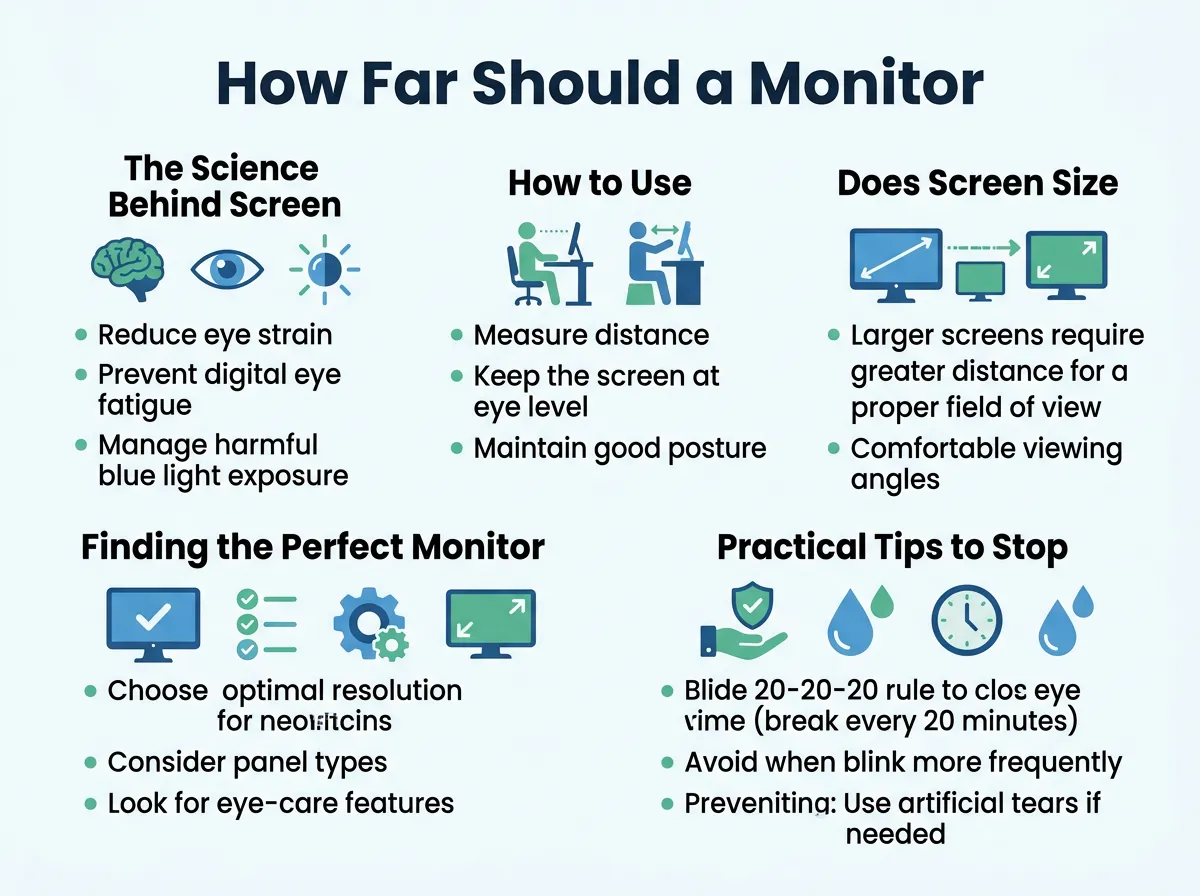
How Far Should a Monitor Be From Your Eyes? — key points at a glance
To do this test, sit back comfortably in your office chair. Keep your back straight and rest your shoulders. Now, extend your arm straight out in front of you. Your fingertips should just barely touch your computer screen. If your hand presses hard against the screen, it is too close. If you cannot touch the screen at all, even when you lean forward a bit, it might be too far away.
This test puts your screen about 20 to 40 inches away from your face. Why is this range the sweet spot? It matches our natural focus point. Ergonomic research has shown that this distance keeps your eyes relaxed. If you want to dive deeper into this science, you can read about the ideal distance from computer screen to eyes to see how experts design healthy workspaces. Keeping this gap stops you from leaning forward. It keeps your neck straight and your shoulders relaxed.
How Far Should a Monitor Be From Your Eyes? For most standard desks and tasks, this arm’s length range is the perfect sweet spot. Try it right now. You might be surprised by how close or far your screen actually is.
Does Screen Size and Resolution Change the Rules?
Not all screens are created equal. A small laptop screen behaves very differently than a massive gaming monitor. When you change your screen size, you must also change your physical setup.
Larger Displays (27 Inches and Above)
If you use a large screen, you need to push it back. A 27-inch, 32-inch, or ultrawide monitor fills your entire field of view. If a large screen is too close, your eyes must travel long distances to see the edges. You will also have to turn your head side to side. This causes neck pain and eye fatigue. For these larger displays, try to sit at least 30 to 40 inches away. This ensures you can see the whole screen without moving your head.
Resolution and Reading Comfort
High-resolution screens, like 1440p or 4K, show very sharp details. However, this high resolution can make text and icons look tiny. If you find yourself squinting, do not pull the monitor closer to your face. How Far Should a Monitor Be From Your Eyes when the screen size changes? The distance should stay back, but you should use your system settings to scale up your text size instead.
For gamers, resolution and distance are key for fast reactions. To get the best setup, look at the guides for the best viewing distance for a 1440p gaming monitor. This balance helps you see all the action without straining your neck. Keep your screen sharp, but keep it at a safe distance.
Finding the Perfect Monitor Height and Angle
Distance is only half the battle. To stop pain, you must also think about the height and angle of your display. Besides height, you must also consider: How Far Should a Monitor Be From Your Eyes to keep your posture aligned?
The Eye-Level Rule
When you sit tall, your eyes should look straight ahead at the top third of your screen. This means the main content sits just below your eye line. Why is this important? Our eyes naturally look slightly downward when we rest. Looking up causes dry eyes because your eyelids must open wider. Looking down keeps your eyelids relaxed and covers more of your eye surface, keeping them moist.
Tilting Your Screen
You should tilt your screen back slightly. An angle of 10 to 20 degrees is perfect. This matches your natural line of sight. It also helps reduce glare from ceiling lights. If you want to build a truly ergonomic setup, check out the details on the optimal monitor viewing angle for eye comfort and posture. Proper height and tilt keep your spine in a neutral alignment. This means no more sore neck muscles at the end of your workday.
Practical Tips to Stop Squinting and Leaning Forward
Many people move their screens closer because they cannot read the text. This is a big mistake that ruins your ergonomics. Here are some quick tips to make your screen easier to read without changing its distance:
- Increase Text Scaling: On Windows or Mac, go to your display settings. Increase the scale to 125% or 150%. This makes text larger and easier to read while keeping your monitor at a safe distance.
- Use High Contrast: Choose dark text on a light background. This is the easiest layout for your brain to read. Avoid bright, neon colors.
- Clean Your Screen: Dust and fingerprints create glare. Clean your screen once a week with a microfiber cloth.
- Adjust Brightness: Match your screen brightness to the room. If your room is dim, dim your monitor too. A bright screen in a dark room acts like a flashlight in your eyes.
How Far Should a Monitor Be From Your Eyes? Remember, if you have to lean forward to read, your setup is not working. Keep the monitor back and adjust your digital settings instead.
Simple Daily Habits for Happy Eyes
Even with a perfect setup, your eyes need regular breaks. We are not built to stare at glass for eight hours straight. In the end, knowing How Far Should a Monitor Be From Your Eyes is only the first step.
- Practice the 20-20-20 Rule: Every 20 minutes, take a 20-second break. Look at something at least 20 feet away. This lets your eye muscles stretch and relax.
- Remember to Blink: When we stare at screens, we blink less. This makes our eyes dry and itchy. Try to blink fully and often.
- Get Regular Eye Exams: Sometimes, eye strain is a sign you need reading glasses. Visit an eye doctor once a year to keep your prescription fresh.
If you ask yourself, “How Far Should a Monitor Be From Your Eyes?” also ask, “How often am I resting my eyes?” Both questions are vital for long-term health.
Conclusion
Your desk setup has a huge impact on your health. By keeping your monitor at an arm’s length, you protect your eyes and your neck. It is a simple fix that costs nothing. Try the arm test today, adjust your screen height, and enjoy a pain-free workday.
Frequently Asked Questions
How do I know if my monitor is too close?
If you experience constant headaches, dry eyes, or find yourself leaning backward in your chair to see, your monitor is likely too close. You can verify this by performing the arm’s length test. If you can easily touch your screen with a bent elbow, push the screen back.
Is a larger monitor worse for your eyes?
A larger monitor is not inherently worse for your eyes, but it requires more physical space. If you keep a large screen too close, your eyes must work harder to scan the entire surface. Always push larger screens further back to maintain a comfortable field of view.
How does screen glare affect eye strain?
Screen glare forces your eyes to strain to see the text beneath the reflection, leading to quick fatigue. To fix this, tilt your monitor slightly backward and place it perpendicular to windows. You can also use anti-glare screen protectors or dim your overhead lights.
What is the 20-20-20 rule for eye strain?
The 20-20-20 rule is a simple habit to rest your eyes. Every 20 minutes, look away from your screen at an object 20 feet away for at least 20 seconds. This action allows your focusing muscles to relax and resets your blink rate.
Can reading glasses help with computer eye strain?
Yes, specialized computer glasses or reading glasses can significantly reduce eye strain. These glasses are designed for intermediate distances, which match the arm’s length desk setup perfectly. If you still experience strain after adjusting your monitor, consult your eye doctor.
Should my monitor be tilted up or down?
Your monitor should be tilted upward by about 10 to 20 degrees. This tilt aligns the display with your natural downward gaze when you sit comfortably. It also helps prevent neck stiffness by keeping your head in a neutral position.
