



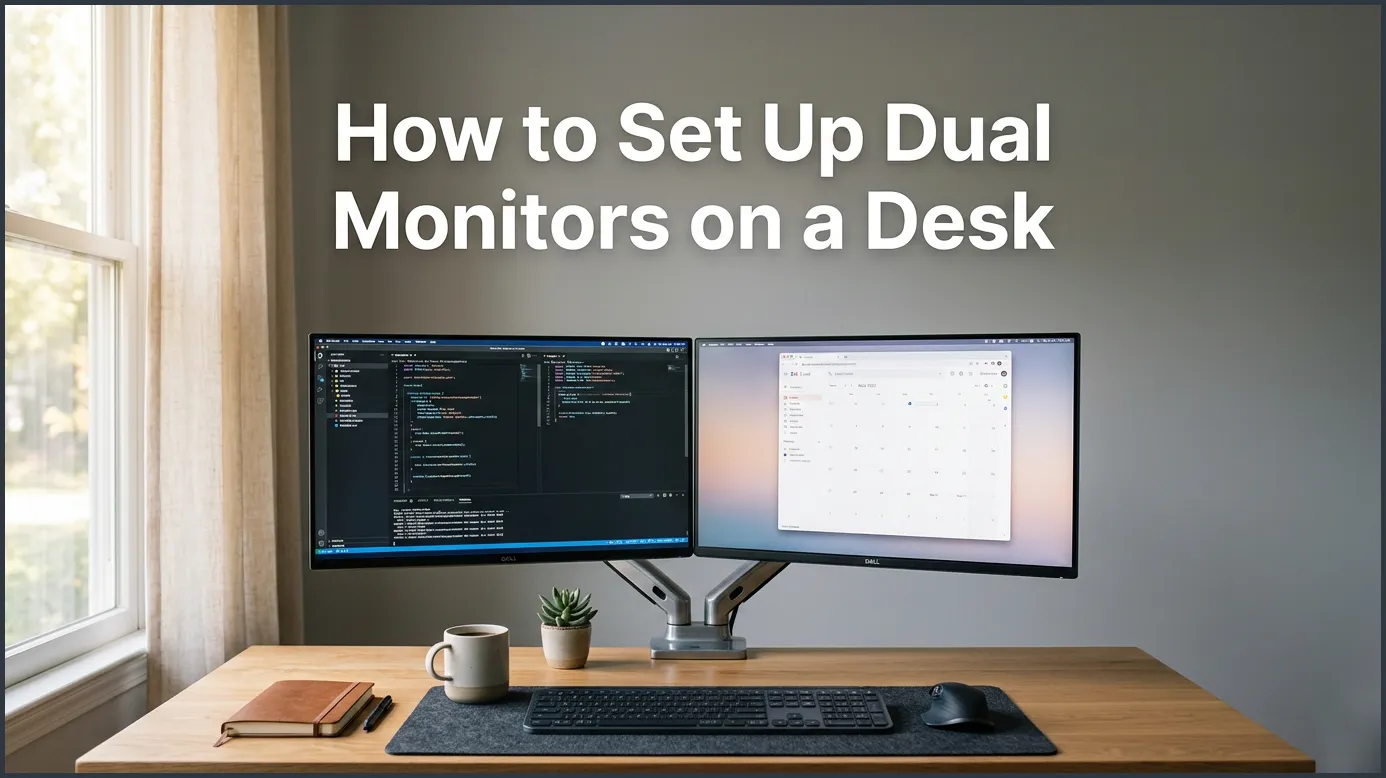
Setting up dual monitors on your desk involves physical alignment, connecting the correct video cables, and configuring your computer’s display settings. By placing the screens at eye level and choosing the right display mode, you can instantly double your screen real estate and reduce neck strain. This guide will help you create a highly efficient, ergonomic workspace in just a few simple steps.
Have you ever felt the frustration of constantly switching between tabs on a single, cramped screen? You are working on a report, but you also need to look at a spreadsheet. You click back and forth. You lose your train of thought. It feels like you are trying to paint a masterpiece on a sticky note. There is a much better way to work.
Learning how to set up dual monitors on a desk is one of the easiest ways to upgrade your workspace. Whether you are a student, a creative professional, or a remote worker, a dual-screen layout can transform your daily flow. In this guide, we will walk you through everything you need to know, from checking your hardware to aligning your screens perfectly. Let us get started!
Key Takeaways
- Ergonomics first: Place your primary screen directly in front of you and keep the top of both screens at eye level to prevent neck strain.
- Check your ports: Ensure your computer has enough video outputs (HDMI, DisplayPort, or USB-C) before buying new screens or cables.
- Choose the right mount: A dual monitor arm frees up valuable desk space and offers easy adjustments.
- Configure settings: Adjust your operating system’s display layout so your mouse moves seamlessly between monitors.
- Match resolutions: Try to use monitors with similar sizes and resolutions to avoid visual lag or cursor jumping.
- Manage your cables: Use ties or clips to keep your power and video cords neat and organized.
📑 Table of Contents
Why You Need a Dual Monitor Setup
Adding a second screen is not just about looking tech-savvy. It is about working smarter. When you have two screens, you can put your main project on one side. You can keep your email, notes, or research on the other. You do not have to minimize windows anymore. Everything you need is right there in your line of sight.
Studies show that extra screen space can make you much faster. It reduces mistakes. It also makes your work day feel less stressful. Once you learn how to set up dual monitors on a desk, you will wonder how you ever managed with just one screen.
If you want to maximize your output, read this helpful guide on a dual monitor setup for work to see how different professionals arrange their digital spaces.
Step 1: Check Your Computer Ports and Cables
Before you buy any new gear, you must check your computer. Look at the back of your desktop PC or the sides of your laptop. You need to find the video ports. These ports send the video signal from your computer to your screens.
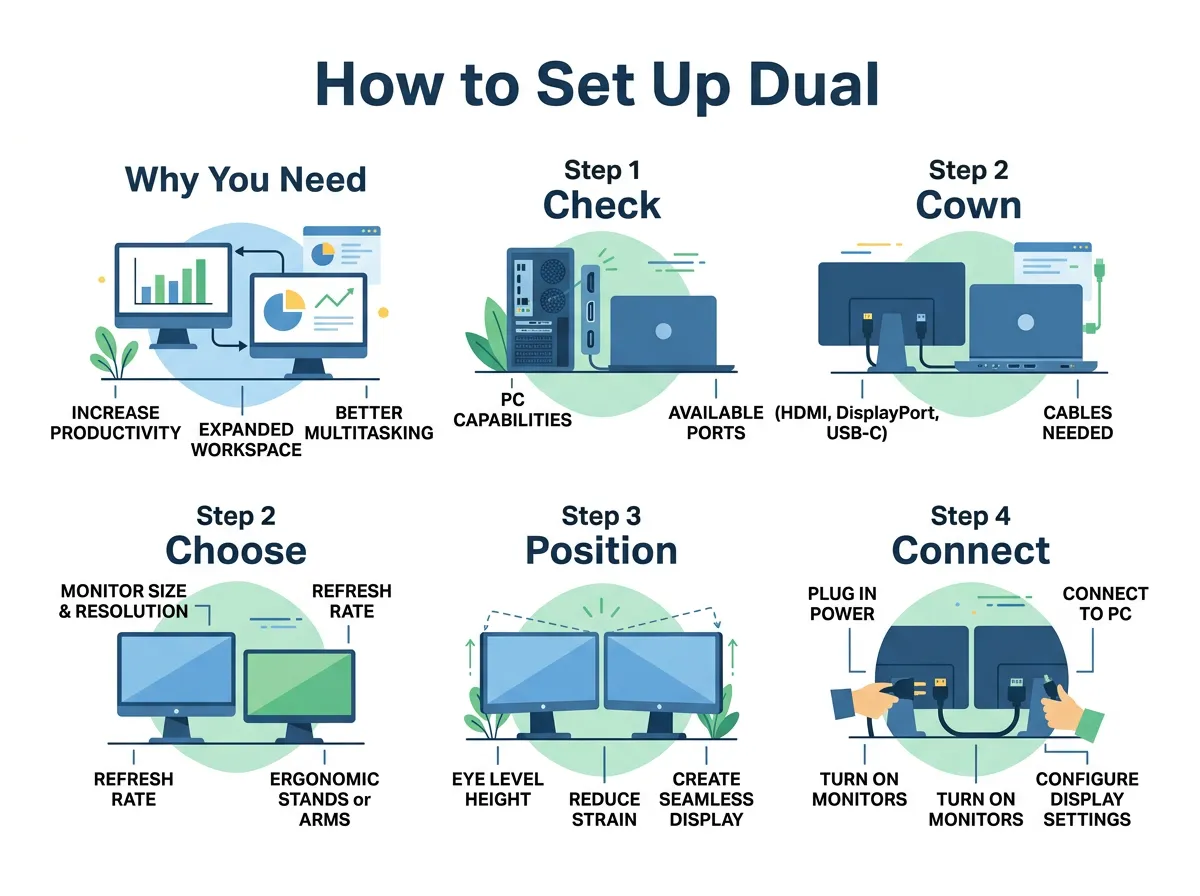
How to Set Up Dual Monitors on a Desk — key points at a glance
Common Port Types
There are a few main types of video ports you might see:
- HDMI: This is the most common port. It looks like a wide, flat hexagon.
- DisplayPort (DP): This port looks similar to HDMI, but it has one flat corner instead of two.
- USB-C: This is a small, oval port. Many modern laptops use this port for power and video.
Make sure your computer has at least two video outputs. If you are using a laptop, you might only have one HDMI port or a couple of USB-C ports. In this case, you may need a docking station or a splitter. For a detailed look at how to connect multiple screens to different computers, check out this setup dual monitor guide.
Step 2: Choose the Right Mounting Method
Now, let us talk about physical setup. You have two main options when it comes to placing your screens on your desk. You can use the stands that came in the box, or you can buy a dedicated dual monitor mount.
Using Default Desktop Stands
This is the simplest option. You just place both monitors side by side on your desk. It is fast and free. However, default stands take up a lot of space. They also do not offer much height adjustment, which can lead to neck pain.
Using a Dual Monitor Arm
A dual monitor arm clamps to the back of your desk. It holds both screens in the air. This frees up a huge amount of desk space. You can use the area under your screens for your keyboard, notebooks, or coffee cup. Arms also let you tilt, turn, and raise your screens easily.
Step 3: Position Your Screens for Best Comfort
Ergonomics is very important. If your screens are too low or too high, your neck and back will hurt. You want to set up your desk so you can work comfortably for hours.
First, sit up straight in your chair. Look straight ahead. Your eyes should align with the top third of your screens. If you have to tilt your head up or down, your screens are at the wrong height. Adjust your stands or monitor arms until the height is just right.
Second, think about how you will use the screens. Do you have one main screen and one secondary screen? If so, place the main screen directly in front of you. Place the second screen to the left or right, angled slightly toward you. Do you use both screens equally? Place them side by side, meeting right in the center of your view. You can learn more about postural alignment by reading about how to ergonomically sit at a desk with two monitors.
Step 4: Connect the Cables and Power Up
Once your screens are physically in place, it is time to plug them in. This part of how to set up dual monitors on a desk is very straightforward.
First, plug the power cables into each monitor. Connect the other ends to a power strip. Next, plug your video cables into the back of your monitors. Then, plug them into your computer. Turn your computer on, and then turn on both monitors. Do not worry if the screens look strange or mirrored at first. We will fix that in the next step.
Step 5: Configure Your Computer Settings
Your computer needs to know how your screens are arranged. This ensures your mouse moves smoothly from one screen to the other.
How to Configure Settings on Windows
- Right-click on an empty space on your desktop.
- Select Display settings from the menu.
- You will see two boxes labeled “1” and “2”. Click and drag these boxes to match how your screens sit on your desk.
- Scroll down to the Multiple displays dropdown. Select Extend these displays. This gives you one giant continuous screen.
- Click Apply to save your changes.
How to Configure Settings on macOS
- Click the Apple icon in the top left corner of your screen.
- Open System Settings and click Displays.
- Click the Arrange button.
- Drag the screen icons to match their physical positions on your desk.
- Make sure the “Mirror Displays” box is unchecked so you have two independent screens.
Cable Management Tips for a Neat Desk
Now that everything is working, your desk might look like a wild jungle of wires. Messy cables look bad and can get tangled. Spend a few minutes tidying up.
Use plastic zip ties or reusable hook-and-loop straps to bundle your cables together. Run the bundle down the back of your monitor stand or along the monitor arm. Many monitor arms have built-in clips to hide cables. Keep the wires close to the stand so they stay out of sight. A clean desk makes for a clear mind!
Conclusion
Knowing how to set up dual monitors on a desk is a game-changer for your daily productivity. It gives you the space to multitask without frustration. By choosing the right cables, mounting your screens at the perfect ergonomic height, and configuring your system settings, you can create a beautiful and healthy workspace. Take your time, adjust your screens to your comfort, and enjoy your amazing new dual-display setup!
Frequently Asked Questions
Do I need two identical monitors for a dual setup?
No, you do not need identical monitors. However, using screens of the same size and resolution makes it much easier to align them and prevents visual lag when moving windows between displays.
Can I set up dual monitors using a laptop?
Yes, you can easily connect an external monitor to your laptop. This creates a dual-screen setup using your laptop screen as the first display and the external monitor as the second.
What cables do I need to connect two monitors?
You will need power cables for each monitor and video cables like HDMI, DisplayPort, or USB-C. Make sure the cables match the available video output ports on your computer.
How do I fix a cursor that goes to the wrong screen?
You can fix this in your computer’s display settings. Simply drag the virtual screen icons to match the physical left-and-right positions of the monitors on your desk.
Is an arm mount better than the original monitor stands?
Yes, an arm mount is generally much better. It saves valuable desk space and allows you to adjust the height, tilt, and angle of your screens for better ergonomics.
Will dual monitors slow down my computer?
For everyday tasks like web browsing and writing, dual monitors will not slow down your computer. However, running heavy 3D games or video editing software across two screens can put more demand on your graphics card.
